
Data/Trading Service Connection and Symbol Issues
- 1.1. Data or Trading Service Setup Issue. Unable to Connect to Data or Trade Server.
- 1.2. Network Communication or Server Problem
- 1.3. Symbols
- 1.4. Intraday Chart Not Updating
- 1.5. Contacting Support for Connection Help
- 1.6. Internet Ports and IP Addresses used by Sierra Chart Data Services
- 1.7. Unable to Connect Because Server is Not Available over the Weekend
- 1.8. Checking Connection Quality to Remote Server by Using Ping
1.1. Data or Trading Service Setup Issue. Unable to Connect to Data or Trade Server.
To get charts or quotes and for them to continuously update, Sierra Chart needs to be properly set up to use a particular Data or Trading service and be connected to that service.
In the case of some services like SC Data - All Services, there is no special set up required to receive historical data and real-time Forex and CFD data.
Select File >> Connect to Data Feed on the menu to connect to the selected Data/Trade service. The selected service is set through Global Settings >> Data/Trade Service Settings >> Service.
After connecting to the Data/Trade server and the Message Log displays Your current service package does not support this function, then refer to help topic 57 for further instructions on what to do in this case.
If you are unable to make a connection to the Data/Trade server, the Sierra Chart Message Log will display a message indicating this error and the reason. To open the Message Log if it is not already visible, select Window >> Message Log . Refer to the image below of an example of the type of message you will see relating to an error connecting to the Data/Trade server.
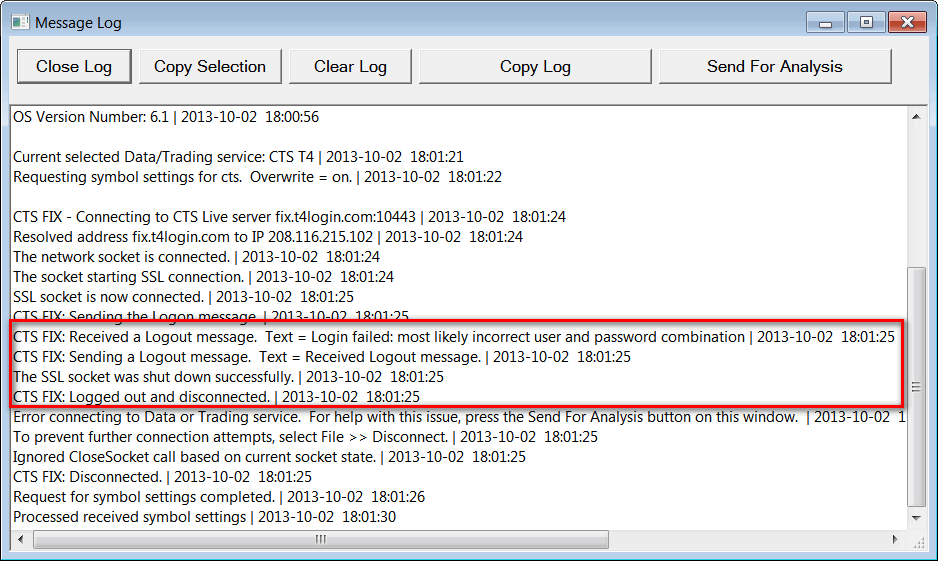
Depending upon the Data or Trading service you are using, the connection error reason may or may not be very descriptive.
If you have the Reconnect on Failure option enabled in the Global Settings >> Data/Trade Service Settings window, Sierra Chart will try to reconnect to the Data/Trade server if it was unable to.
To manually retry connecting to the Data/Trade server at any time, select File >> Connect to Data Feed on the menu. You can also stop connection attempts by selecting File >> Disconnect on the menu.
If you are unable to connect to the Data/Trade server, then there could be a communication problem to the server, a problem with the server, or you may not be properly set up to use the Data or Trading service. For example, you may not have an account with the Data or Trading service you are trying to use.
Whatever the reason for the connection problem, you may not be able to get new charts or quotes and existing charts will not update.
In the case where you do not have an account with the particular Data or Trading service you are trying to use, select Global Settings >> Data/Trade Service Settings. Set the Service to SC Data-All Services and then select File >> Connect to Data Feed. To know what symbols real-time data can be received for with that service without using the Sierra Chart Exchange Data Feed, refer to What Data Is Real-Time.
Go to the Data and Trading Services page and follow the setup instructions for the Data or Trading service you want to use to get properly set up to use that service if you are unable to connect to the data/trade server due to a set up problem.
If you are unable to connect to the data/trade server due to a communication or server problem, refer to help topic 1.2.
If you are able to connect to the data/trade server, however you are using an unknown or improperly formatted symbol, or you are connected to the wrong service, then you also will not get a chart, quote or updates. In this case, refer to help topic 1.3 for further information about symbols.
Finally, the next step is to contact Sierra Chart support for help with connection problems. Refer to Contacting Support for Connection Help.
1.2. Network Communication or Server Problem
If you have followed all of the Setup Instructions to connect to the Data or Trading service you are using and Sierra Chart continues to report in the Window >> Message Log it cannot connect, it cannot Logon, there is a connection error, or there is a Timeout connecting to the Data or Trading server, then this can be caused by one of the reasons explained in the list below.
In addition to other error and connection related messages, you will see this common message in the Message Log which indicates a problem connecting: Error connecting to Data or Trading service.
Below are examples of some network connection error messages you may receive in the Message Log when connecting to the server or when the connection to the server is lost.
If the message you are receiving relates to a historical Intraday data download, then refer to Error when Downloading Historical Intraday Data from the Sierra Chart Historical Data Server instead.
Error getting address info for ds7.sierracharts.com. Windows error code 11001: No such host is known.
- Set Global Settings >> Sierra Chart Server Settings >> General >> Special >> Use Internal LAN IP for CME Data and Order Routing to No. This must always be No unless there is a rare case you require it. 99.9999% of Sierra Chart users cannot use this option.
- A firewall on your computer is blocking Internet access from Sierra Chart. Usually the Windows firewall is not the source of a problem. Although, you could try temporarily disabling the Windows firewall just to be certain.
If you have updated Sierra Chart to a newer version, then some firewalls may block Internet access (this is a common issue with some firewalls). In this case, what you need to do is unblock Sierra Chart from the firewall connection rules list in that firewall program. If that does not help, uninstall your firewall and restart your computer. Sierra Chart support cannot help with firewall problems. Sierra Chart needs to be provided full Internet access to establish connections to Data and Trading services.
What we recommend doing to rule out a firewall as the source of the problem is to restart your computer into Windows Safe Mode with Network support. This will not load any firewall software.
If you need more help solving a firewall problem on your computer blocking Sierra Chart from connecting to the servers it needs to connect to, you will need to contact someone who can help you with this problem on your computer or hire a competent computer expert to help you with this. Sierra Chart support does not provide this service. Sierra Chart support can only tell you about what ports and addresses, it needs to connect to. If a firewall is blocking the connection, the only other advice you will get from Sierra Chart support is to remove the firewall from your computer totally and completely and do not install it again for the very simple reason that we do not support other software on a user's computer, and we want to provide a fast resolution to the problem. - If you are receiving HTTP errors in the Window >> Message Log like these: HTTPSendRequest Failed or HTTP request ## returned the following error, then refer to the HTTP Communication Errors page.
- Your internal network is blocking connection on the ports required to connect to the Data and Trading servers. If you are on a work network, contact your network administrator to allow Sierra Chart access to the servers. You will need to contact the provider of the Data or Trading service you are using Sierra Chart with to find out the specific IP addresses and ports used. The Sierra Chart Window >> Message Log may display server addresses and ports used for the particular server or servers being connected to.
- The Domain Name Service on your computer or with your ISP is not functioning properly. The error message in the Window >> Message Log would contain the text: No such host is known or you may get a message similar to the following: Windows error code 11002: This is usually a temporary error during hostname resolution and means that the local server did not receive a response from an authoritative server.
In this case you may want to try restarting your computer or going to the command line and entering the following: ipconfig /flushdns. - The Data or Trading server is temporarily unavailable. With some services, the Data or Trading server may be unavailable during end of day processing or during the weekend.
- The Data or Trading server is temporarily unavailable. In this case contact your Data or Trading service to find out if this is the case.
- There is a communication problem between Sierra Chart and the Data or Trading server due a general Internet issue that is outside of your computer or local network. In this case you may want to contact your ISP or wait for the problem to clear and be resolved. As the Internet has grown to be more and more reliable, this is less likely to be an issue. This was more of a potential problem in the past.
- There is a communication problem between Sierra Chart and the Data or Trading server due to a network hardware or hardware configuration problem on your side. Try a different Internet connection as part of troubleshooting this problem. Also check all of your computer networking hardware. Try replacing any routers, switches and network adapters. And also try a different computer.
- If you see a message like the following in the Message Log: Socket error on address resolution: Windows error code 11004: The requested name is valid, but no data of the requested type was found. , then this indicates your computer is not able to properly resolve server addresses. The recommendation in this case is to restart your computer, start Sierra Chart, and try connecting again with File >> Connect to Data Feed.
Lost Connections to Server
Another connectivity problem can be that the connection is successful to a Data or Trading server but you lose the connection often.
There can be various errors. Some of them would be:
All of the reasons given in the parent section above can also be the cause of this condition including firewall/security software on your system.
1.3. Symbols

If you receive a "Symbol Error: [Symbol] is unknown, unavailable, or improperly formatted" message in the Sierra Chart Window >> Message Log for a symbol, or you see the message Symbol is unknown on the chart window, then you are using an unknown, unavailable on your Data or Trading service account, or improperly formatted symbol in a chart, Trade DOM, or Quote Board.
In some cases you will not receive this message even when you are still using an invalid symbol. If Sierra Chart support has told you are using an invalid symbol for the particular Data or Trading service being used, then you are even if you do not receive that message.
When using an invalid symbol, you will not get a chart, quote or real-time updates for that symbol. To open the Message Log to see this message, if the Message Log is not already open, select Window >> Message Log on the menu. If the Message Log window is not visible, select Window >> Reset Windows and open the Message Log again.
The message Symbol is unknown will be displayed on the chart window for an unknown, unavailable or improperly formatted symbol, for a period of 30 seconds.
To find the available symbols for the Current Selected Data/Trading Service you are using, select File >> Find Symbol on the menu.
If that list is blank, Update the Symbol Settings to get the Symbol Settings for the currently selected Data/Trading service.
Each of the supported Data and Trading services has their own symbology. Therefore, a symbol for one particular service may not match with another service and will not provide historical and real-time data. This can be a problem when sharing a Chartbook because the Chartbook may use a symbol which is correct for one particular Data/Trading service but is not correct for the service being used by the user receiving the Chartbook. This can be solved by simply changing the symbol of existing charts which is explained further below.
The fastest solution to translate symbols in most common cases is to use the Edit >> Translate Symbols to Current Service command. If that resolves the issue with a chart being blank or not receiving current data, then stop here.
Not all symbols that are supported by the Data/Trading service you are using will be listed in the Find Symbol window. For example, stock symbols will not be listed and less common futures markets will not be listed.
In these cases, manually type the symbol into the File >> Find Symbol >> Selected Symbol box and press the appropriate Open* button depending upon what type of window you want to open.
To change the futures symbols of the charts in open Chartbooks and open Quote Boards automatically to the symbol format used by the current Data/Trading Service, select Edit >> Translate Symbols to Current Service. This is only going to work for the most common futures symbols. If this does not translate a particular futures symbol, let Sierra Chart Support know the symbol and the particular Data/Trade Service you are using.
To change the symbol of an existing chart or Trade DOM to the correct symbol for the Data or Trading service you are using, go to the chart and select Chart >> Chart Settings. Beside the Symbol box on the Main Settings tab, press the Find button, select the symbol from the list and press OK or enter the symbol in the Symbol box. For other methods and detailed instructions, refer to Changing the Symbol of a Chart or Trade DOM.
One other possible reason for a symbol error message is because you are connected to the wrong Data or Trading service. For example, by default Sierra Chart is configured to work with the Sierra Chart Real-Time and Historical Forex/CFD Data Service, Sierra Chart Market Statistics Data Feed, Cryptocurrencies Data Services, Delayed Exchange Data Feed, Denali Exchange Data Feed, and the Sierra Chart Historical Data Service. The Global Settings >> Data/Trade Service Settings >> Service in Sierra Chart for these services combined is listed as SC Data - All Services.
If these are not the services you want to use or you do want to use these services and the current Service is set to SC Data - All Services, then you need to set Sierra Chart to work with the Data or Trading Service you want to use.
Go to the Data and Trading Services page and follow the setup instructions for the Data or Trading service you want to use to get properly set up to use that service. The Data or Trading service for Sierra Chart to use is set through the Global Settings >> Data/Trade Service Settings >> Service setting.
Symbol Not Authorized On Data/Trading Service Account
One reason you receive a Symbol is Unknown message on the chart for a symbol is because the particular symbol is not authorized on the Data or Trading services account you are using Sierra Chart with. You will need to contact your Data or Trading service provider and tell them particular symbols you want to have authorized on your account.
This is especially true with CME (Chicago Mercantile Exchange) symbols because the CME has begun to charge exchange fees for their market data for all users, effective as of 2015-01-01.
1.4. Intraday Chart Not Updating
If you are able to connect to the Data and/or Trade server and you are using the correct symbol, however an Intraday chart is blank or is not updating, then refer to help topic 3 for additional items to check.
1.5. Contacting Support for Connection Help
If you have followed all the setup instructions to connect to the Data or Trading service you want to use and Sierra Chart continues to report it cannot connect or log on to the Data/Trade server, then you will need to contact Sierra Chart support for additional help.
To do this, follow the Support Board Posting Instructions.
We will need to see a copy of the Message Log. To provide that, refer to the instructions to post your Message Log.
1.6. Internet Ports and IP Addresses used by Sierra Chart Data Services
The information in this section refers to Sierra Chart provided Data and Trading services only. It does not apply to externally provided Data or Trading services.
The port numbers and IP addresses for non Sierra Chart services in most cases are displayed in the Window >> Message Log when Sierra Chart is connecting to those services, but not in all cases.
You will see messages similar to "Connecting to (server address:port)" in the Message Log.
Internet Ports
For Sierra Chart provided real-time data services, the Internet ports are 443, 10048, 10047, 10045, 10060, 10043, 10042.
There is also the Global Settings >> Sierra Chart Server Settings >> Always use Port 443 for Real-Time Data setting. This is only used for real-time data, for some of the data feeds but not all.
Depending upon the particular symbol, and the selected Data or Trading service, historical Daily data from Sierra Chart data servers will be downloaded on ports 80, 10149, 10150, or 10159.
For most of the supported Data and Trading services historical Intraday data is downloaded on port 10149 or 10150. However, port 80 can also be used. More information about this can be found in the Error when Downloading Historical Intraday Data from the Sierra Chart Historical Data Server section.
IP Addresses
When using the Sierra Chart provided data services and order routing services, the following are the server addresses. The IP addresses can be looked up from these domain names:
- ds3.sierracharts.com
- ds4.sierracharts.com
- ds4-2.sierracharts.com
- ds12.sierracharts.com
- ds12-2.sierracharts.com
- ds13-2.sierracharts.com
- ds13-3.sierracharts.com
- ds13.sierracharts.com
- ds14.sierracharts.com
- ds21.sierracharts.com
- ds22.sierracharts.com
- ds23.sierracharts.com
- ds23-2.sierracharts.com
- ds24.sierracharts.com
- ds25.sierracharts.com
- ds26.sierracharts.com
- ds26-2.sierracharts.com
- ds27.sierracharts.com
- ds28.sierracharts.com
- ds28-2.sierracharts.com
- ds30.sierracharts.com
- ds30-2.sierracharts.com
- ds31.sierracharts.com
- ds31-2.sierracharts.com
- futurestrading1.sierracharts.com
- futurestrading2.sierracharts.com
- futurestrading3.sierracharts.com
- futurestrading4.sierracharts.com
- futurestrading10.sierracharts.com
- futurestrading11.sierracharts.com
- futurestrading12.sierracharts.com
- futurestrading13.sierracharts.com
- futurestrading14.sierracharts.com
- futurestrading15.sierracharts.com
- futurestrading16.sierracharts.com
- futurestrading17.sierracharts.com
- futurestrading18.sierracharts.com
- futurestrading19.sierracharts.com
- tradesimulation1.sierracharts.com
- tradesimulation2.sierracharts.com
- tradesimulation3.sierracharts.com
- tradesimulation4.sierracharts.com
- tradesimulation5.sierracharts.com
- lmaxtrade2.sierracharts.com: LMAX Trading
- lmaxtrade3.sierracharts.com: LMAX Trading
- lmaxhd.sierracharts.com: LMAX Data
- lmaxrt.sierracharts.com: LMAX Data
- lmaxrt2.sierracharts.com: LMAX Data
The IP address of www.sierrachart.com is used by Sierra Chart for services other than market data services.
The IP address of ds01.ddfplus.com is used by Sierra Chart for historical daily price data.
1.7. Unable to Connect Because Server is Not Available over the Weekend
Some of the supported Trading services do not make their market data and trading servers available over the weekend.
This is true of many of the supported external Trading service.
All of the Data services and order routing Trading services directly provided by Sierra Chart are available 24 hours a day 7 days a week without exception. So there is never a problem connecting to them on the weekend. These services are expected to replace all other services in 2022. The services we are referring to are all of the Sierra Chart Data and Trading services with Sierra Chart in their name. Refer to the Supported Data and Trading Services list.
This also includes the Sierra Chart Teton Futures Order Routing Service which we recommend users change to as soon as possible from services like Transact, Gain Capital CTS, CQG, Rithmic, Interactive Brokers, and the older SC/TT based order routing service, if it provides order routing for the exchanges that you require.
A weekend is defined as Friday evening, all day Saturday, and Sunday morning and afternoon. The weekend is considered to end on Sunday evening.
What this means is that Sierra Chart will not be able to connect to those servers from external Trading services over the weekend if they do not allow it. You will see a message in the Sierra Chart Message Log indicating that it cannot connect to the server, usually because the server refused the connection.
Do not contact Sierra Chart support about these kinds of connection problems over the weekend. We do not need this unnecessary burden. We do not need to hear about connection problems to external services that we do not control and have no control over. What you instead need to do is solve the problem yourself by changing to the Teton Futures Order Routing Service!
1.8. Checking Connection Quality to Remote Server by Using Ping
Sierra Chart supports numerous external Data and Trading services. In most cases it establishes a direct network connection to the remote server of those services. The server address name or IP address is shown in the Message Log (Window >> Message Log) when the connection to the server is being established. Look in the Message Log to see the server address name.
An example: SC Exchange Data | Connecting to the server ds1.sierracharts.com. Port 443. In this line ds1.sierracharts.com is the server address name.
A useful way to check the quality of the connectivity between your computer and the server being connected to, is by using the network Ping command from the operating system command line. You will use the server address name with the Ping command.
Refer to this Internet article for instructions to use Ping.
If you notice significant packet loss, then this indicates the connection quality to the remote server is not good.
*Last modified Thursday, 04th April, 2024.